Samsung Pass Is Going Away. Here’s What to Use for Your Passwords Instead
If you own a Galaxy phone, there’s a decent chance your passwords live in an app that Samsung is quietly retiring. Samsung Pass began as a password manager and later added payment cards; Samsung has since merged Pass and Samsung Pay into Samsung Wallet. According to Android Authority, Pass users are now receiving reminders to migrate, and once they do, the Pass app icon disappears.
That raises a practical question: where should your passwords actually live? The article notes Pass data will be available in Wallet and that Pass-style autofill can be reached through Quick Access, but it doesn’t explicitly confirm that every saved password transfers, and it gives no firm deadline. When a migration is vague, the safest move is to take control of your own data before it’s moved for you.
This guide covers what’s happening, what to look for in a password manager on a Samsung phone, the realistic options, and a step-by-step way to switch without locking yourself out. It pairs with our explainer on why the old password rules were declared wrong, because a good manager is what makes the new rules livable.
What Is Happening to Samsung Pass?
Samsung is phasing out Samsung Pass in favour of Samsung Wallet. Wallet now covers payments, digital keys and other items, and Samsung has been prompting Pass users to upgrade. TechRadar’s comparison described Pass as slowly being integrated into Wallet, with the roles of the two apps overlapping during the transition. Note that piece was published in June 2023, so details may have changed.
What isn’t clearly documented in the sources I could verify: whether every saved login and any passkeys carry across, and what Wallet’s long-term password features look like. Rather than guess, check inside your own phone after migrating, and keep an independent copy of your logins.
The takeaway isn’t panic. It’s that a password manager tied to a phone maker’s app is a single point of dependency, and this is a good moment to choose something you control.
What to Look For in a Password Manager on a Samsung Phone
Not every manager works equally well on Android. Before choosing, check these five things.
Autofill that works in apps and browsers. Android lets you pick a system autofill service. The manager you choose should fill both Chrome or Samsung Internet and individual apps reliably.
Cross-platform support. If you also use a Windows PC, a Mac or an iPhone, the manager should sync across all of them. This is why searches for a password manager on iPhone and Samsung overlap so heavily.
Passkey support. Passkeys are replacing passwords on major services. A manager that can store and sync them saves you from being locked into one ecosystem. Our upcoming guide to passkeys vs passwords explains why that matters.
Strong security design. Look for end-to-end encryption, a master password that the company can’t see, two-factor protection for the vault itself, and ideally independent security audits.
Clean export. The best protection against future migrations is being able to export your vault in a standard format. Check this before you commit.
Your Realistic Options
There are four sensible routes for most Galaxy owners. Features and prices change often, so confirm on each provider’s site before paying.
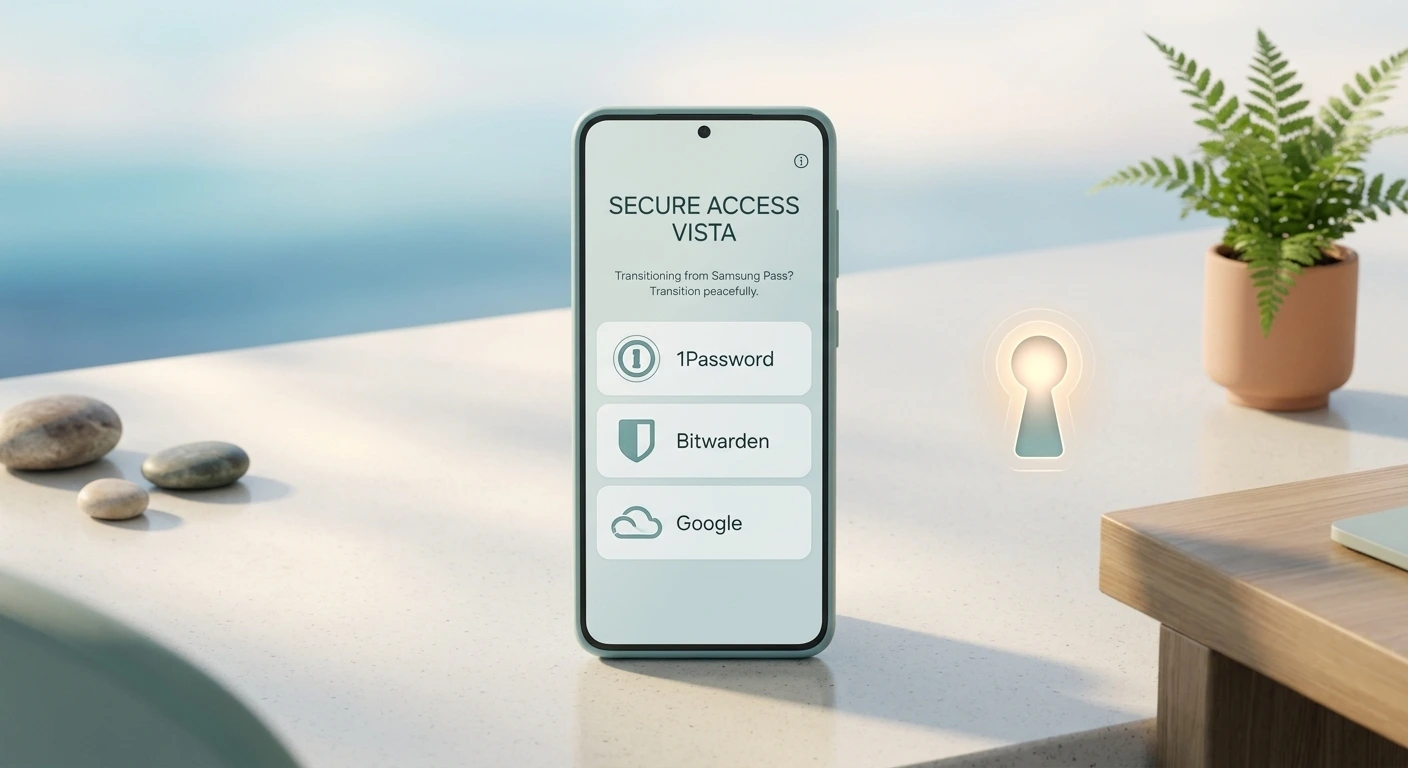
Google Password Manager (built in)
Every Galaxy phone ships with Google services, and Google Password Manager is integrated into Chrome and Android autofill. It’s free, needs no extra app, and supports passkeys. It’s a reasonable choice if you live in Chrome and Android. The trade-off is that your passwords are tied to your Google account, so that account’s security is everything.
Bitwarden
Bitwarden is open-source, works on Android, iOS, desktop and browsers, and has a free tier that covers unlimited passwords across devices. It’s a popular pick for people who want a capable manager without a subscription. The interface is more functional than polished.
1Password
1Password is a paid manager known for a refined interface, strong family sharing and solid autofill. It suits households and people who want less friction and don’t mind paying.
Proton Pass
Proton Pass comes from the team behind Proton Mail, is end-to-end encrypted and includes a free plan. It appeals to privacy-focused users already in the Proton ecosystem.
Which should you choose? If you want zero cost and minimal setup, start with Google’s. If you want independence from any one phone or browser maker, choose Bitwarden or Proton Pass. If you value polish and sharing, 1Password is the common pick. There’s no single winner; the best manager is the one you’ll actually use every day.
How to Move Off Samsung Pass Safely
Follow this order so you’re never without access.
- Don’t uninstall anything yet. Keep Samsung Pass or Wallet on the phone until the move is complete.
- Pick your new manager and create the account with a long, unique master password. Write it down and store it somewhere physically safe.
- Turn on two-factor protection for the manager itself, using an authenticator app or security key rather than SMS.
- Bring your logins across. Check whether your new manager can import from your browser or whether Samsung’s apps offer an export. If an export isn’t available, you can re-save logins as you sign in to each site, starting with the important ones.
- Set the new manager as your Android autofill service in your phone’s settings, then test it on a few apps and sites.
- Fix your riskiest accounts first. While you’re in there, change reused passwords on email, banking and shopping accounts, and add passkeys where offered.
- Only then retire the old vault. Once everything works, delete leftover saved logins from the old app.
Samsung-Specific Tips Before You Switch
Galaxy phones add a few quirks worth knowing. Samsung’s own autofill service sits alongside Google’s in your phone’s settings, and you can only have one primary autofill provider active at a time. If your new manager doesn’t fill in an app, this setting is the first place to look.
Samsung Internet and Chrome handle autofill differently. Most third-party managers offer both a browser extension or in-app prompt and a system-level autofill service, so test your key sites in the browser you actually use. If a particular banking app blocks autofill for security reasons, copy the password from the manager’s app and paste it manually; that’s expected behaviour, not a fault.
Finally, consider how you’ll unlock the vault. Fingerprint unlock on a Galaxy phone is convenient and secure, but it still depends on your master password as the fallback. Make sure you can type it from memory or retrieve it from your safe copy, and avoid any setup where the only way back into your passwords is the very phone you might lose.
If you’re setting this up for a parent or relative who isn’t confident with technology, choose the manager with the simplest autofill, store the recovery details with a trusted person, and walk through two or three of their key logins together. A manager that someone uses is far safer than a perfect one that’s abandoned after a week.
Habits That Matter More Than Which App You Choose
A password manager is only as strong as how you use it. A few practices pay off.
Use the generator for every new account so each password is long and unique. Never reuse your master password anywhere. Lock the app with biometrics for convenience, but keep a strong screen lock on your phone. And keep your phone updated, since the manager can’t protect you from a compromised device.
Also remember that a manager doesn’t help if you hand a password to a scammer. As we’ve covered, the scam call that used to sound fake now sounds exactly like your daughter. A manager adds a helpful signal here: it won’t autofill on a lookalike site, which is a quiet warning that something is off.
Frequently Asked Questions
Is Samsung Pass being discontinued?
Samsung has been merging Samsung Pass into Samsung Wallet and prompting users to migrate, according to Android Authority. The coverage I found gave no firm shutdown date, so check the notices on your own phone and keep a backup of your logins.
What is the best free password manager for a Samsung phone?
Google Password Manager is already built in, and Bitwarden and Proton Pass both offer free plans that work across devices. Pick Google’s for simplicity, or Bitwarden or Proton Pass if you want independence from one account or browser.
Is Google Password Manager safe enough?
For most people it’s a big improvement over reusing passwords. Its safety depends on how well you protect your Google account, so turn on two-step verification or passkeys there and keep recovery options current.
Can I use the same password manager on Samsung and iPhone?
Yes, if you choose a cross-platform manager such as Bitwarden, 1Password or Proton Pass. Phone-maker tools tend to be strongest within their own ecosystem, so a third-party manager is the easiest way to share one vault across both.
Will my passwords transfer automatically from Samsung Pass to Samsung Wallet?
Reports say Pass data will be available in Wallet, but the coverage I checked didn’t explicitly confirm that saved passwords and passkeys all transfer. Verify after migrating, and keep an independent copy in a manager you control.
What happens if I forget my master password?
Most zero-knowledge managers can’t recover it for you, because the company can’t read your vault. Store the master password and any recovery key in a safe place, and set up the recovery options your manager offers before you need them.
Conclusion
Samsung’s shift from Pass to Wallet is a good prompt to stop depending on a phone maker’s app for something this important. The sources are clear that a migration is underway, and unclear about exactly what moves and when, so the sensible response is to hold your own copy.
Choose a manager you’ll use daily, set a strong master password and two-factor protection, then migrate your most important logins first. Do that and a changing Samsung app becomes a minor detail instead of a lockout risk.